
Do you ever find yourself jumping between files, meeting notes, emails, chats, and websites just to complete a task?
Copilot Notebooks brings everything you need into one place and gives Copilot the context it needs to help you work more effectively.
Instead of starting every conversation from scratch, you can build a Notebook around the information that matters most and let Copilot help you find answers, uncover insights, and create new content faster.
Whether you're preparing for a meeting, learning a new process, researching a topic, supporting customers, or managing ongoing responsibilities, Copilot Notebooks can become your personal AI-powered workspace.
How to Create a Copilot Notebook
Step 1: Open Copilot Notebooks
- Open Microsoft OneNote.
- Select Copilot Notebooks from the navigation menu.
- Click +.
Step 2: Give Your Notebook a Name
Choose a name that will make sense to you later.
Examples:
- Feature Watch Planning
- Project Launch
- Quarterly Business Review
- Training Resources
- Research Hub
Think of it as naming a folder for everything related to a specific topic.
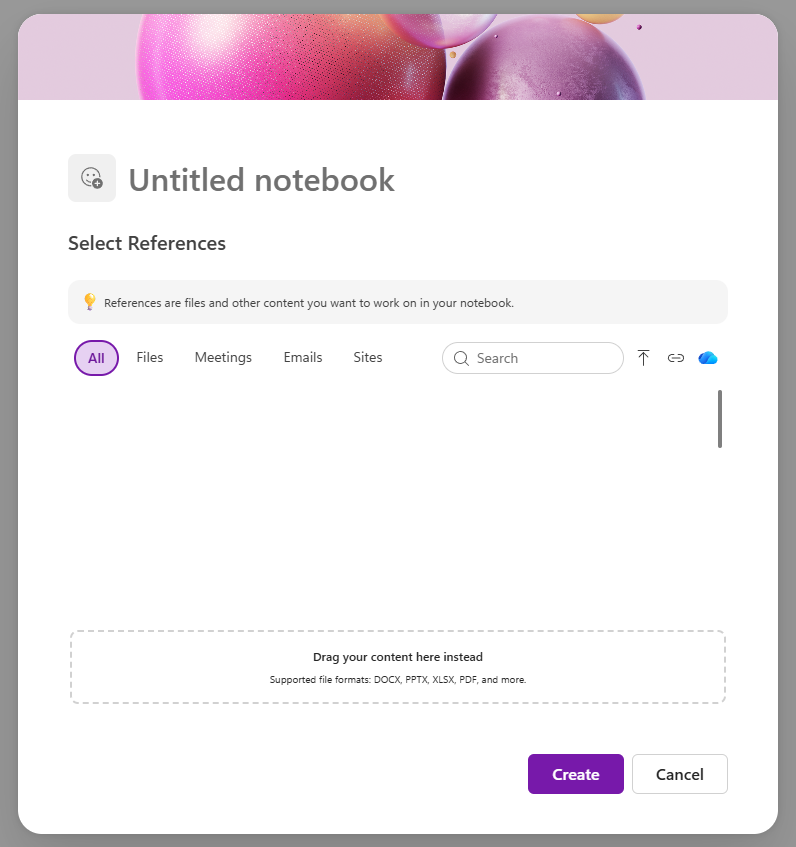
Step 3: Add Your References
Now it's time to build your notebook's knowledge base.
You can add:
- Files
- Emails
- Meetings
- Sites
- Recently accessed content
Simply browse the tabs and select the content you want to include. You can also drag and drop supported files directly into the notebook.
Step 4: Create the Notebook
Once you've gathered your content:
- Review the references you've selected.
- Click Create.
Copilot will organize your content and prepare it for analysis.
Keep Everything You Need in One Place
Copilot Notebooks Allows You to Gather the Content You Rely on most into a Single Workspace.
Add files, meeting notes, Copilot chats, links, and other resources so everything related to a topic is organized together.
Why it Matters
Instead of searching across multiple locations, you can access everything from a single Notebook.
Great for:
- Preparing for recurring meetings
- Learning new processes or procedures
- Organizing training materials
- Managing customer information
- Keeping department resources together
- Collecting research and reference materials
The result is less time searching and more time focusing on the work that matters most.
Get Answers from Your Content
Once You've Added Your Content, Copilot can Help You make Sense of it.
Ask questions in natural language and Copilot will analyze the information in your Notebook to identify key points, summarize content, and help you quickly find what you're looking for.
Goal |
Prompt to Try |
| Get the Big Picture | Summarize the key themes and takeaways from everything in this notebook. |
| Catch Me Up | If I only have 2 minutes, what are the most important things I should know from this notebook? |
| Find Trends | What patterns, trends, or recurring topics do you see across these sources? |
| Spot Risks | Are there any risks, concerns, or challenges mentioned throughout this content? |
| Identify Opportunities | What opportunities, improvements, or next steps are suggested by these materials? |
| Create an Executive Summary | Create a one-page executive summary that I can share with leadership. |
| Generate Action Items | Based on this information, what actions should I take next? |
| Prepare for a Meeting | Create talking points and discussion questions for a meeting based on this notebook. |
| Draft an Email | Draft an email summarizing the key information from this notebook. |
| Build a Presentation | Create an outline for a presentation using the information in this notebook. |
| Compare Information | Compare the different viewpoints, recommendations, or findings across the sources. |
| Find Missing Information | What important questions are not answered by the information in this notebook? |
| Turn Content into FAQs | Create a FAQ based on the most common topics in these materials. |
| Explain Like I'm New | Explain the key ideas in simple language for someone unfamiliar with this topic. |
| Create a Learning Plan | What should I read first, second, and third to understand this topic quickly? |
| Find Key Decisions | What decisions were made or recommended across these documents? |
| Pull Out Quotes | Highlight the most impactful statements, recommendations, or findings. |
| Create a Checklist | Turn the key recommendations from this notebook into a practical checklist. |
| Brainstorm Ideas | Based on this information, what new ideas or approaches should we consider? |
| Challenge My Thinking | What assumptions might someone make after reviewing this content, and are they valid? |
| Ask Me Questions | What questions should I be asking based on the information in this notebook? |
| Find Contradictions | Are there any conflicting messages, recommendations, or data points in these sources? |
| Turn Information into Tasks | Create a prioritized task list based on the key information in this notebook. |
| Act as an Expert | Based on these materials, what advice would an expert provide on this topic? |
| Generate Discussion Starters | Create 10 thought-provoking questions based on the notebook content. |
Turn Information into Action
Copilot Notebooks Helps You Move Beyond Collecting Information and Start Creating with it.
Using the content in your Notebook, Copilot can help generate useful outputs such as reports, presentations, study guides, summaries, and other draft content.
It can even suggest relevant artifacts to create based on the information you've gathered.
Feature |
What it Does |
Why You'll Love It |
Example Use Case |
|---|---|---|---|
| Audio Overview 🎧 | Creates an AI-generated audio summary of your notebook content so you can listen to key information instead of reading through documents. | • Catch up on projects while commuting • Refresh yourself before meetings • Consume information hands-free • Great for auditory learners |
"I have 20 project documents and meeting notes. Give me the story in 5 minutes." |
| Mind Map 🧠 | Creates an interactive visual map showing the major topics, themes, and relationships within your notebook content. | • Understand complex projects faster • Visualize connections and dependencies • Identify themes and gaps • Great for brainstorming and planning |
"Show me how all these project requirements, risks, and stakeholder requests connect." |
|
Study Guide 📚 |
Turns your notebook into a learning resource with summaries, topic pages, flashcards, quizzes, and other study materials. |
• Learn new topics faster |
"I just inherited a project. Help me learn everything I need to know." |
|
Infographic 📊 |
Transforms notebook content into a visual infographic that highlights key information, processes, timelines, or concepts. |
• Share information in an engaging way |
"Turn this project's milestones, risks, and outcomes into a one-page visual summary." |
| Workbook 📈 | Creates an Excel workbook based on the information in your notebook, helping organize, track, and analyze data. | • Convert notes into trackable data • Create project trackers • Organize information for reporting • Move from discussion to analysis quickly |
"Turn all the action items from these meetings into a spreadsheet I can track." |
| Document 📄 | Generates a Word document using the notebook's content as source material, helping you draft content faster. | • Create reports and proposals quickly • Reduce time spent gathering information • Stay grounded in source materials • Avoid starting from a blank page |
"Create a project status report using everything I've added to this notebook." |
| Presentation 🖥️ | Creates a PowerPoint presentation based on the information in your notebook and organizes it into slides. | • Build presentations in minutes • Turn research into a polished deck • Save time organizing content • Perfect for updates, training, and briefings |
"Create a 10-slide executive update from this project's documents, emails, and meeting notes." |
Copilot in your M365 game changing apps.

Forms + Copilot

OneNote + Copilot

Stream + Copilot

Loop + Copilot

Planner + Copilot