
Work Smarter and More Informed
Every day, Copilot gets a little closer to becoming your true assistant.
Copilot can already edit your documents and use different types of reasoning in its responses. With this month's updates, it's even smarter about helping you review meetings, providing insights in the moment, and creating presentations.
Let's dive in!
Meeting Recaps, All in One Place
The Meeting Recap App in Teams Brings Together All Meetings that have been Recorded or Transcribed, even Ones You Only Followed and Didn’t attend.
With the power of Copilot, see at a glance how many times you were mentioned in a meeting and what action items need to be followed up on.
From here, you can view video recaps of recorded meetings, create audio recaps of up to eight meetings at a time, and access the full Recap experience for individual meetings.
Recaps With and Without a Copilot License
Feature / Capability |
Without a Microsoft 365 Copilot License |
With a Microsoft 365 Copilot License |
|
Enhanced Copilot experiences |
❌ Not available |
Quickly understand meeting outcomes without reading full transcripts or watching recordings |
| Purpose of Recap app |
Centralized location to find existing meeting content |
Centralized location plus AI-powered insights and summaries |
| View meeting recaps |
✅ View meeting recaps from the past 30 days |
✅ Enhanced AI-powered meeting recaps |
| Search and filter meetings |
✅ Available |
✅ Available |
| Access recordings and transcripts |
✅ Access content users already have permission to view |
✅ Access content with AI-assisted insights |
| Open meeting notes and shared content |
✅ Available |
✅ Available |
| Intelligent meeting summaries |
❌ Not available |
✅ AI-generated meeting summaries |
| Key takeaways and action items |
❌ Not available |
✅ AI-generated key takeaways and action items |
| Podcast-style audio recaps |
❌ Not available |
✅ Audio recaps across multiple meetings |
| Video highlight recaps |
❌ Not available |
✅ AI-generated video highlights |
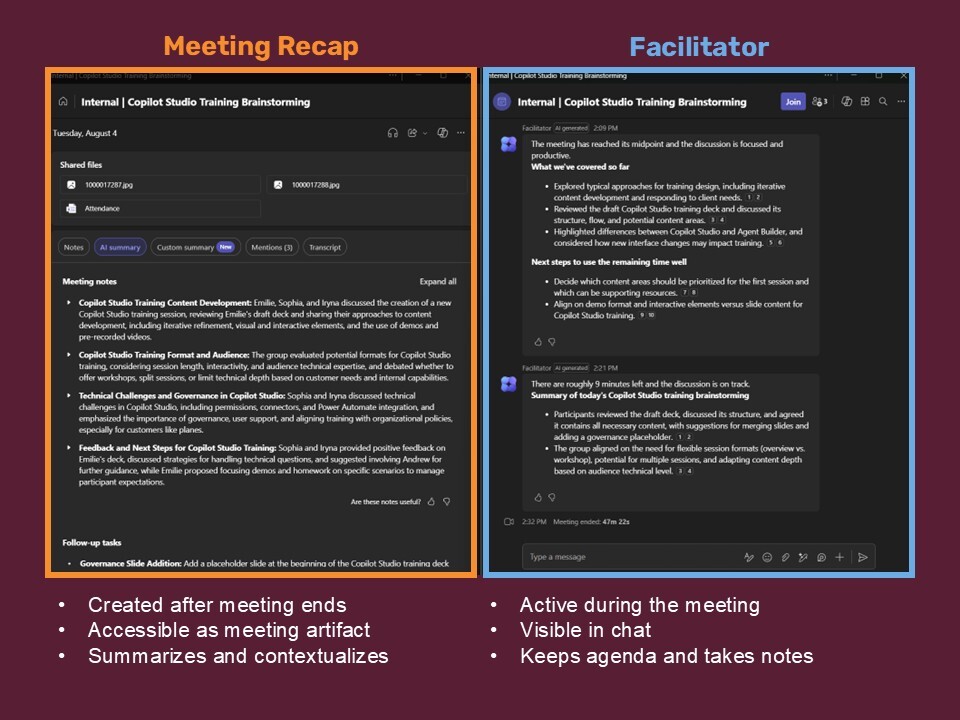
Meeting Recap vs. Facilitator
Facilitator During, Recap After
Think of Recap as the meeting record and Facilitator as the AI meeting assistant in the room.
- Meeting Recap: Post-meeting review dashboard containing recordings, transcripts, notes, summaries, files, and tasks
- Facilitator: Meeting “participant” that works during the meeting to capture notes and action items in real time
When to Use What
Scenario |
Use Recap |
Use Facilitator |
|
You couldn't attend the meeting |
✅ |
|
| You need a quick summary before a follow-up discussion |
✅ |
|
| Someone needs meeting notes afterward |
✅ |
|
| The meeting has many decisions and action items |
|
✅ |
| No one wants to take notes |
|
✅ |
| The group wants shared visibility into commitments as they happen |
|
✅ |
| You want both live note-taking and a post-meeting summary |
✅ |
✅ |
Meeting Recaps | Prompts to Try
Use Case |
What it does |
Prompt |
|
Executive Summary |
Creates a concise overview for leaders or stakeholders. |
I'm sharing an update on [Project/Initiative] with [Leader/Team]. Based on everything captured in this meeting recap, including the transcript, notes, chat, and action items, summarize the meeting in five key points. Include the most important decisions, risks, next steps, and anything that requires leadership attention. |
|
Decisions Made |
Identifies decisions and the reasoning behind them. |
Review this meeting recap and create a list of all decisions that were made regarding [Project/Topic]. For each decision, explain the reasoning that led to it, who was involved in the discussion, and any follow-up actions that resulted from it. |
|
Action Items and Ownership |
Generates a clear task list with accountability. |
Go through this meeting recap and create an action-item tracker. Include every task that was discussed, who owns it, any due dates that were mentioned, and any dependencies or blockers that could affect completion. |
|
Stakeholder Perspectives |
Highlights differing viewpoints and concerns. |
Summarize the perspectives shared by different participants during the discussion about [Topic]. Highlight where people agreed, where opinions differed, any concerns that were raised, and questions that were left unresolved. |
|
Risks and Concerns |
Surfaces potential roadblocks and issues. |
What risks, concerns, or potential blockers were discussed during this meeting about [Project/Initiative]? Organize them by category, explain their potential impact, identify who raised them, and summarize any mitigation strategies that were suggested. |
|
Project Status Update |
Creates a project progress summary from the meeting. |
Using this meeting recap, prepare a project status update for [Project/Initiative]. Summarize completed work, current progress, upcoming milestones, key dependencies, risks, blockers, and next steps discussed during the meeting. |
|
Person-Focused Summary |
Tracks discussion related to a specific individual. |
Summarize everything related to [Person] from this meeting. Include tasks assigned to them, decisions they influenced, questions they answered, concerns they raised, and any follow-up activities involving them. |
|
Topic Deep Dive |
Consolidates everything discussed about a specific subject. |
Pull together all discussion related to [Topic/Project/Customer] from this meeting. Include decisions, concerns, questions, commitments, action items, owners, and next steps so I can quickly understand everything that was covered. |
|
Catch Up on a Missed Meeting |
Gives attendees a complete overview if they couldn't attend. |
I wasn't able to attend this meeting. Use the recap, transcript, chat, and action items to explain what happened, why the meeting was held, the key discussion points, decisions that were made, tasks that were assigned, and any areas where I should follow up. |
|
Prepare for the Next Meeting |
Identifies open items and future discussion topics. |
I'm preparing for the next discussion about [Project/Initiative]. Review this meeting recap and identify unresolved questions, deferred decisions, outstanding action items, pending approvals, and recommended topics that should be included in the next agenda. |
Tip: The most effective Meeting Recap prompts are not simple requests for a summary.
Instead, ask Copilot to analyze the meeting through a specific lens, such as decisions, risks, stakeholder perspectives, action items, or project status. This helps surface insights that would otherwise require manually reviewing the full transcript and recap.
Explain This with Copilot in PowerPoint Live
When viewing a PowerPoint Live presentation, you can now select Explain This and highlight an area of your screen.
The Copilot pane will appear, analyze the text in your selection, and provide an explanation of what’s selected.
This explanation is private to you and will not be displayed to other attendees or the presenter.
Tip: Try it with unfamiliar acronyms, abbreviations, and technical or domain-specific terms.
Create a PowerPoint from an Image
Start from an Image, Diagram, Screenshot, and More
Copilot in PowerPoint isn’t just for generating images—you can use them to create a presentation, too.
Attach images to your Copilot prompts in PowerPoint not only for visual inspiration, but also as a source of information, structure, and storytelling direction.
Attach diagrams, screenshots, mockups, whiteboards, product photos, dashboards, and more!
Here’s a General Prompt Structure to Get You Started:
- Use the attached image as a reference.
- Create a [presentation type] for [audience].
- Focus on:
- - [Key topic 1]
- - [Key topic 2]
- - [Key topic 3]
- Match the visual style where appropriate.
- The final presentation should be [tone/style].
PowerPoint from Images | Prompts to Try
Use Case |
What to do |
Prompt |
|---|---|---|
|
Build a Deck |
Use a product image, mockup, prototype, or screenshot as the foundation for a presentation explaining features, benefits, and business value. |
Use the attached product image as the primary reference. Create a 10-slide presentation that explains what the product does, the key features visible in the image, the business problem it solves, target audiences, benefits, and differentiators. Use the visual style and colour palette from the image throughout the presentation and include speaker notes. |
|
Turn a Process Diagram into a Presentation |
Convert a workflow diagram, architecture diagram, or process map into an audience-friendly presentation. |
Use the attached process diagram as the source material. Create a presentation that explains the process step-by-step for a non-technical audience. Include an overview slide, one slide per major stage, risks and bottlenecks, benefits of the process, and key takeaways. Use simple language and visuals. |
|
Create an Executive Update from a Dashboard |
Use a dashboard or KPI report screenshot to generate a data-driven business update. |
Use the attached dashboard screenshot as the primary source. Create an executive presentation that highlights the most important trends, calls out achievements and concerns, explains what the data means, and identifies recommended next actions. Write for a senior leadership audience and focus on insights rather than describing every metric. |
|
Transform Workshop Notes into a Strategy Deck |
Turn a whiteboard, brainstorming session, or Miro board into a structured presentation. |
Use the attached image of workshop notes as the source material. Organize the ideas into logical themes and create a presentation that includes current challenges, opportunities, recommended actions, and prioritized next steps. Group similar ideas together and create an executive summary slide. |
|
Match the Style of an Existing Presentation |
Use an image from a presentation or document as inspiration for the look and feel of a new deck. |
Use the attached image as inspiration for the visual style. Create a presentation on digital transformation. Match the colour palette, visual tone, slide density, layout style, and image treatment. Do not copy content from the image; use it only as design inspiration. |
|
Generate Recommendations from a Site Photo |
Analyze photos of a building, workspace, retail location, or facility and build a presentation around observations and recommendations. |
Use the attached site photo as reference. Create a presentation assessing the environment and provide observations, potential opportunities for improvement, risks or challenges, proposed recommendations, and next steps. Include an executive summary and recommendations slide. |
|
Convert a Sketch into a Concept Presentation |
Transform a hand-drawn sketch, wireframe, or concept diagram into a polished business presentation. |
Use the attached sketch as the foundation. Create a concept presentation that explains the overall vision, key components shown, expected user experience, benefits, and implementation considerations. Fill in reasonable presentation structure while staying aligned to the sketch. |
|
Create Training Material from a Screenshot |
Build training content from screenshots of an application, website, or business process. |
Use the attached application screenshot. Create a training presentation that explains what users are looking at, highlights key features, describes common tasks, includes beginner-friendly guidance, and ends with tips and best practices. |
|
Tell the Story Behind a Chart |
Turn a chart, graph, or visualization into a narrative presentation focused on insights and actions. |
Use the attached chart as the source. Create a presentation that explains key trends, insights, possible causes, business implications, and recommended actions. Focus on the narrative behind the chart rather than repeating the data. |
|
Create a Competitive Analysis from a Screenshot |
Analyze a competitor's website, advertisement, landing page, or product screenshot. |
Use the attached screenshot as reference. Create a competitive analysis presentation covering observations, strengths, weaknesses, messaging approach, differentiators, and potential responses for our organization. Present findings in an objective manner. |
Copilot in your M365 game changing apps.

Forms + Copilot

OneNote + Copilot

Stream + Copilot

Loop + Copilot

Planner + Copilot