
Work Your Way with the Latest Copilot Updates
Whether you're drafting documents, finding information, or tackling your daily to-do list, the latest Copilot updates are designed to help you work more efficiently.
From a refreshed Microsoft 365 experience and improved chat access to smarter writing assistance and flexible AI model choices, these enhancements make it easier to get things done your way!
A Refreshed Copilot Experience
Microsoft is refreshing the Copilot experience across Microsoft 365 with a cleaner design, improved navigation, and easier access to chat history.
The updated interface creates a more consistent experience across Copilot apps and tools, making it easier to find what you need, stay focused, and get work done more efficiently.
What Do These Copilot Updates Mean for You?
A Familiar Experience Across Apps
Whether you're using Copilot in Edge, the Microsoft 365 Copilot app, or other Microsoft 365 tools, the layout and navigation are now more consistent. This makes it easier to switch between apps without having to relearn where things are.
A Cleaner Interface
The refreshed design reduces visual clutter and makes key features easier to find, helping you stay focused on the task at hand.
Easier Access to Previous Chats
Finding past conversations is now simpler, with improved chat history navigation and continuous scrolling that makes it easier to revisit previous prompts and responses.
Less Time Searching, More Time Working
With streamlined navigation and a more organized layout, you can spend less time looking for features and more time using Copilot to help with your work.
A Refreshed Look and Feel
The updated design aligns with other Microsoft 365 experiences, creating a more familiar and consistent experience across the tools you use every day.
How the New Copilot Design Helps in Everyday Work
What You're Doing |
How the New Design Helps |
|
Picking up where you left off |
Need to revisit a conversation from yesterday or last week? Improved chat history makes it easier to find previous prompts, responses, and work without starting over. |
| Switching between Microsoft 365 apps |
Whether you're using Copilot in Edge, the Microsoft 365 Copilot app, or another Microsoft 365 tool, the experience feels more familiar and consistent. |
| Finding the right feature |
A cleaner layout reduces clutter, making common actions and tools easier to locate when you need them. |
| Using Copilot throughout the day |
Navigation is more streamlined, helping you move between chats, prompts, and tasks with fewer clicks. |
| Learning Copilot for the first time |
A simpler, more organized interface makes it easier for new users to get comfortable and start using Copilot confidently. |
| Returning to ongoing projects |
Past conversations are easier to access, allowing you to continue refining documents, emails, presentations, and other work without losing context. |
Work Smarter with Word's New Copilot Enhancements
Word Gets Smarter About Keeping You Up to Date
Copilot in Word is becoming a better writing partner by helping you stay on top of document changes and work more efficiently. New capabilities include:
-
Create images directly within your document
-
Pick up where you left off with access to previous Copilot conversations
-
Get quick summaries of what's changed since you last opened a document
-
Apply suggested edits from comments with greater accuracy and context
Helpful Copilot Prompts in Word
What You Want to Do |
Prompt to Try |
Example Result |
|
Catch up on document changes |
"Summarize what has changed in this document." |
Copilot provides a quick overview of new sections, edits, and updates. |
|
Understand updates since your last review |
"What were the most important changes made recently?" |
Highlights key revisions so you can focus on what's new. |
|
Review comments faster |
"Summarize the comments in this document." |
Groups feedback into a simple list of suggested updates. |
|
Apply feedback |
"Apply the suggested changes from the comments." |
Updates the document based on reviewer feedback. |
|
Create an image |
"Create an image that represents this topic." |
Generates a relevant image and inserts it into the document. |
|
Improve your writing |
"Make this section more professional." |
Rewrites content with clearer, more polished language. |
|
Simplify content |
"Rewrite this in plain language." |
Makes complex information easier to read and understand. |
|
Shorten content |
"Condense this into three key points." |
Creates a concise summary of the selected content. |
|
Get started on a draft |
"Create an introduction for this document." |
Generates a draft introduction based on the document's topic. |
|
Continue where you left off |
"Remind me what we worked on last time." |
Uses previous Copilot chat context to help you pick up where you left off. |
More AI Model Choices Inside Copilot
Choose What Works for You!
Copilot is expanding your AI options by introducing additional models, including Claude Opus and GPT.
This gives you more flexibility to choose the best model for the type of work you're doing.
Option |
Best For |
What Makes It Different? |
Example Use Case |
|
Auto |
Everyday work |
Copilot automatically selects the best model and level of reasoning for your request. |
"Summarize this document and highlight the key actions." |
|---|---|---|---|
|
Quick Response |
Fast answers and simple tasks |
Delivers answers quickly when speed is more important than deep analysis. |
"Draft a follow-up email from these meeting notes." |
|
Think Deeper |
Analysis, planning, and decision-making |
Takes extra time to evaluate information and provide more detailed recommendations. |
"Compare these three software options and recommend the best fit." |
|
GPT |
Content creation and productivity |
A versatile, all-purpose model that works well for writing, brainstorming, summarizing, and organizing information. |
"Create a project plan based on these requirements." |
|
Claude Opus |
Long documents and content refinement |
Particularly strong at reviewing detailed content, improving writing, and working through complex documents. |
"Review this policy document and suggest ways to make it clear |
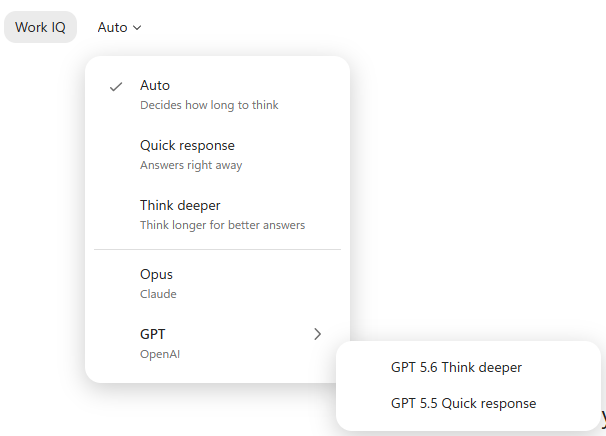
From Quick Answers to Deep Thinking | Prompts to Try
Option |
Try This Prompt |
What You'll Get |
|
Auto |
Summarize the key points from the documents and emails related to this project and suggest my next steps. |
Copilot automatically determines the best approach and level of analysis. |
|---|---|---|
|
Help me prepare for my upcoming meeting by summarizing recent activity and highlighting any risks or open items. |
A balanced response using the most appropriate model for the task. |
|
|
Quick Response |
Draft a professional email thanking the team for their input. |
A fast, ready-to-use draft. |
|
Explain this spreadsheet in plain language. |
A concise summary without extensive analysis. |
|
|
Create a short meeting agenda for a 30-minute project update. |
A quick draft you can use immediately. |
|
|
Think Deeper |
Compare these three options and recommend the best choice based on cost, effort, and business impact. |
Detailed analysis with reasoning and recommendations. |
|
Review this project plan and identify potential risks or gaps. |
A thoughtful assessment with actionable insights. |
|
|
Help me build a change management strategy for introducing a new process to employees. |
A structured plan with considerations and recommendations. |
|
|
GPT |
Create a communication plan for an upcoming system migration. |
Well-organized content that can be refined and reused. |
|
Turn these notes into a project charter with goals, scope, and deliverables. |
Structured business content ready for editing. |
|
|
Create a presentation outline for training employees on SharePoint. |
A clear, organized framework for a presentation. |
|
|
Claude Opus |
Review this document and suggest ways to improve clarity and readability. |
Detailed writing feedback and refinement suggestions. |
|
Analyze this policy document and identify sections that may be confusing to employees. |
Deeper document review and critique. |
|
|
Rewrite this communication to make it more engaging and easier for a non-technical audience to understand. |
More polished, audience-friendly content. |
Copilot in your M365 game changing apps.

Forms + Copilot

OneNote + Copilot

Stream + Copilot

Loop + Copilot

Planner + Copilot